Why a good USB-C adapter is essential for your MacBook
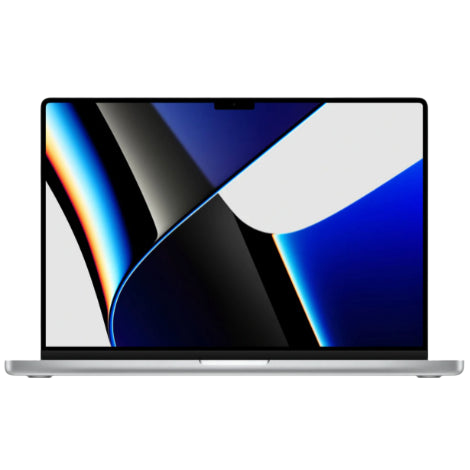
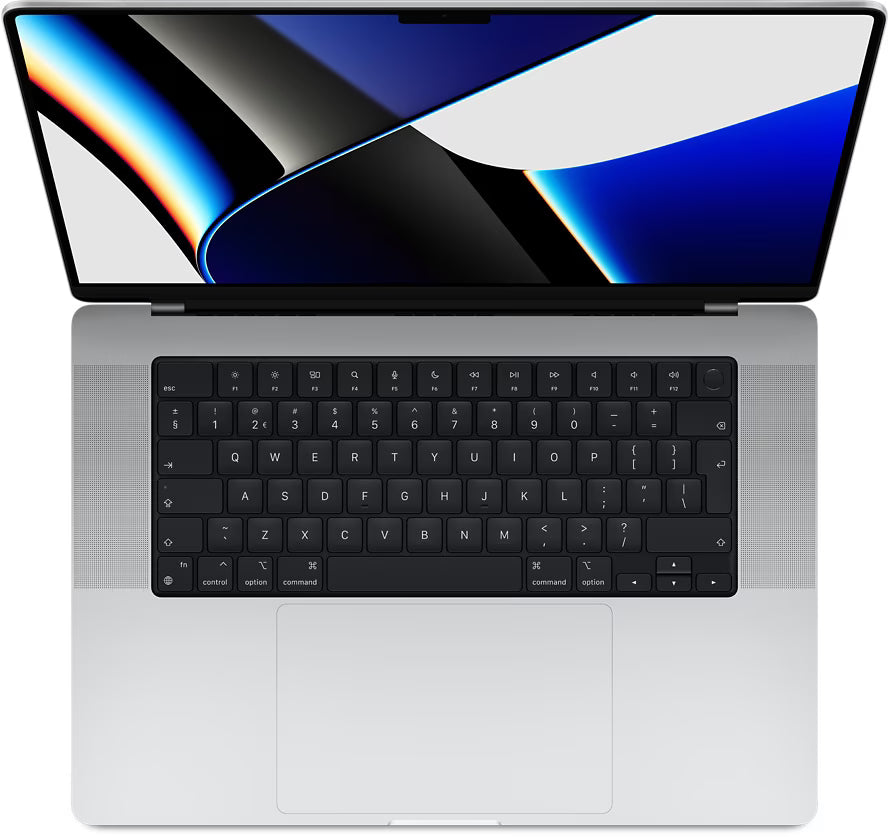
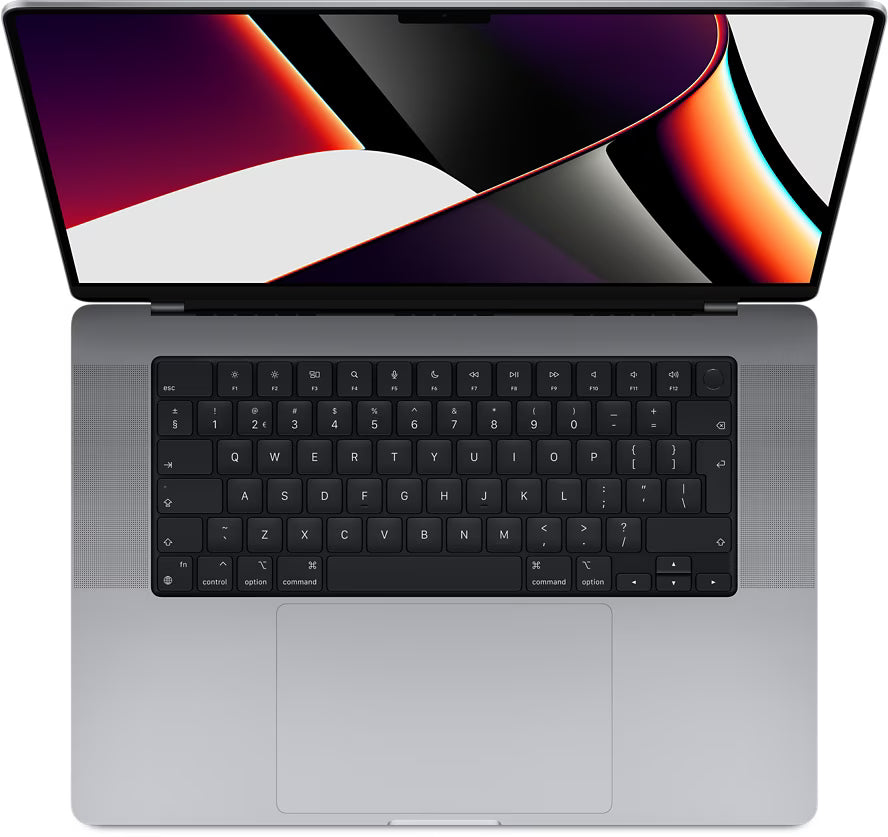
Your new MacBook only has USB-C ports. Your external hard drive no longer fits. Neither does that mouse from work. It's logical to think: quickly order a cheap adapter for a few euros. Problem solved.
But wait. That three-euro adapter that comes loose within two weeks? That slows down your data transfer to a snail's pace? Or worse still: that suddenly stops working while transferring important files?
What no one tells you is that a bad adapter not only sabotages your productivity but can also damage your expensive Apple equipment. Choosing the right USB-C adapter is not about finding the lowest price. It's about understanding the technical pitfalls and why those few extra euros can save you hundreds of euros in the long run.
Useful links
The hidden costs of cheap USB-C adapters
A three-euro adapter seems like a bargain. Until you lose data during an important transfer. Or when your MacBook's port is damaged by a wobbly connector. The true price of a bad adapter is measured not only in euros but also in lost time, frustration, and potential repair costs.
Cheap adapters often use inferior chips that limit transfer speeds to the USB 2.0 standard. That means a maximum of 480 Mbps, while a good USB-C adapter with USB 3.1 support achieves up to 10 Gbps. For transferring a 50 GB 4K video file, you're talking about the difference between 10 minutes and more than 2 hours of waiting.
Technical specifications that matter
When choosing an adapter, look beyond just the connector. These factors determine performance:
- Data speed: USB 2.0 (480 Mbps), USB 3.0 (5 Gbps) or USB 3.1 (10 Gbps)
- Power delivery: support for Power Delivery up to 100W
- Video output: HDMI 2.0 for 4K@60Hz or DisplayPort 1.4
- Housing material: aluminum for better heat dissipation
- Chipset: brands like Intel or VIA offer more stable performance
Practical use cases
For the home worker
You work with an external monitor, keyboard, and mouse. A multiport adapter with HDMI, multiple USB-A ports, and pass-through charging is essential. Look for adapters that support at least 60W Power Delivery so your MacBook charges while in use. Models with an integrated SD card reader save you an extra dongle.
For the creative professional
Photographers and videographers need fast data transfer. A Thunderbolt 3 adapter with 40 Gbps support makes all the difference when working with RAW files or 4K footage. These adapters cost more, but the time saved during your workflow pays for itself. Check if the model can handle two 4K displays simultaneously for optimal productivity.
For on the go
Compactness counts when you travel a lot. A simple USB-C to USB-A adapter is sufficient for occasional use. Choose models with reinforced cable connections and a flexible housing that can withstand bumps. Store the adapter in a separate compartment to prevent damage.
Compatibility and pitfalls
Not every USB-C port is created equal. MacBooks from 2016 onwards support Thunderbolt 3, but iPads often only have USB-C without Thunderbolt. This limits the possibilities for external displays and certain accessories. Always check your device's specifications before investing in an expensive hub.
Some adapters do not work with encrypted external drives or specific audio interfaces. This is due to incompatible controllers or missing drivers. Brands that explicitly mention Mac compatibility have usually resolved these issues.
Maintenance for longer lifespan
You can extend your adapter's lifespan with simple actions:
- Always pull the connector, never the cable
- Avoid sharp bends in cables
- Clean contact points monthly with isopropyl alcohol
- Store adapters at room temperature, not in direct sunlight
- Use compressed air to remove dust from ports
Price comparison and value for money choices
A basic adapter costs between 15 and 30 euros from reliable brands. Multiport hubs range from 40 to 150 euros, depending on features. Thunderbolt 3 docks start at 200 euros. The investment in quality pays off by:
- No data loss during transfers
- Protection against power surges
- Consistently working connections
- Longer replacement cycle
Cheap no-name adapters are replaced on average every 6 months. A quality adapter lasts at least 3 years with daily use. Calculate which is more economical.
Signs that your adapter needs replacing
These symptoms indicate a failing adapter:
- Connections randomly drop
- Slower transfer speeds than usual
- Devices are no longer recognized
- Overheating during use
- Physical damage to connectors or housing
Don't wait until complete failure. A malfunctioning adapter can damage your devices or corrupt important data. Replace it at the first signs of problems.
Future-proof investment
USB4 and Thunderbolt 4 are becoming the new standard. These protocols offer up to 40 Gbps data transfer and better compatibility between different brands. Consider adapters that already support these standards, especially if you plan to use your setup for the next few years.
Also look for adapters with firmware updates. Manufacturers can fix bugs and add new features through software updates. This significantly extends the usable lifespan.
Choosing the right USB-C adapter pays off
A USB-C adapter is more than a simple intermediary. The extra few tens of euros for a decent one will save you hundreds of euros in damage and hours of frustration.
Choose an adapter that suits your working method – whether you connect your MacBook to a complete setup at home or just plug in a mouse on the go. Check your devices' specifications, invest in brands with good support, and replace them promptly at the first sign of trouble.
This way, you remain productive without the hassle of flickering connections or slow transfers.