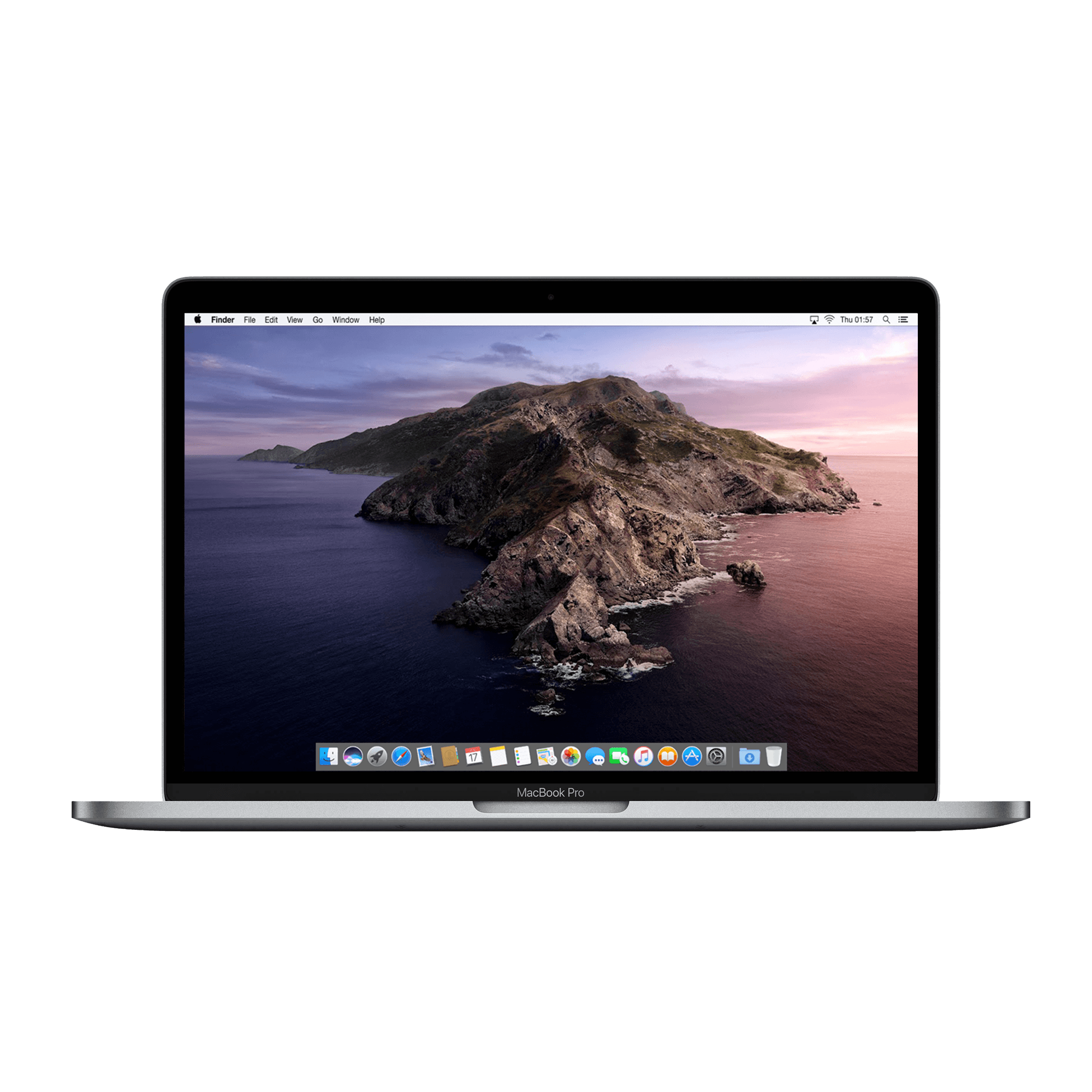
Widgets on your MacBook: less is more
Widgets on your MacBook promise wonders for your productivity. Yet almost everyone ends up with a cluttered desktop full of useless mini-apps. You know how it is: install ten widgets, use two, forget the rest. But here's what no one tells you: the problem isn't with the widgets themselves, but with how we choose them. We download everything that looks good and forget the simple question: what do I really need? Just like you don't buy unnecessary accessories or use features on your AirPods that you ignore anyway. This guide turns that around. No list of twenty must-have widgets. Instead, a sober look at which tools genuinely improve your workday – and why the rest only distract.
Useful links
- Refurbished MacBooks for optimal widget performance
- iPhone collection for seamless synchronization
- Accessories to complete your setup
The reality of widgets on your MacBook
Let's be honest: most MacBook users install widgets with the best intentions, but end up with a digital junk drawer. The problem isn't with the technology itself, but with our tendency to want everything without considering what we actually use.
The widget market for macOS is flooded with options. From weather apps to to-do lists, from system monitors to music players - there's a mini-application for every conceivable function. But which ones truly deserve a place on your screen?
Widgets that earn their keep
Calendar and planning
Apple's standard calendar widget does exactly what you expect: it shows appointments. But for those who want more, there are alternatives like Fantastical or BusyCal. These tools offer advanced features such as natural language input ('lunch with John next Tuesday') and integration with various calendar systems.
The difference is in the details. While the standard widget only shows your next appointment, premium alternatives give you a full weekly overview. For freelancers juggling multiple projects, that's the difference between chaos and control.
System management without the fuss
iStat Menus remains the king of system monitoring. This tool gives you real-time insight into CPU usage, memory, network activity, and battery status. It sounds technical, but for anyone wondering why their MacBook feels slow, this is indispensable.
The widget version only shows essential information: temperature, fan speed, and processor load. No superfluous graphs or percentages that you don't understand anyway. Practical example: you can immediately see when an app is demanding too many resources and intervene before your system crashes.
The underestimated category: note-taking widgets
Drafts as a digital notepad
Forget complex note-taking apps. Drafts acts as a digital napkin where you quickly jot down thoughts. The widget version opens a new text window directly – no folders, tags, or formatting getting in the way.
The strong point: everything you type is automatically saved. Only later do you decide what happens to it: forward it to your to-do list, email it to yourself, or simply delete it. For people who need to quickly jot something down during meetings, this is the ideal solution.
Tot.app for minimalists
Tot takes a different approach: seven fixed notes, nothing more. Sounds restrictive, but that's precisely its strength. Each note has its own colour and is directly accessible via the widget. No endless lists or search functions needed.
Use case: one note for groceries, one for work ideas, one for movies you want to watch. The limitation forces you to tidy up regularly and only keep the most important things.
Communication widgets: to use or not to use?
WhatsApp and Telegram
The widget versions of these chat apps show your latest conversations. Convenient? At first glance, yes. But in practice, they mainly lead to distraction. You open your MacBook to work and immediately see that someone has sent a message.
The better approach: use Apple's native Messages app with Handoff. Your phone remains the primary communication tool, but urgent messages can be answered from your Mac without constant interruption.
Weather widgets: the eternal classic
Carrot Weather versus the rest
Apple's standard weather widget is... boring but functional. Temperature, cloud cover, chance of rain - you often don't need more. Carrot Weather, on the other hand, offers personality. The app has a sarcastic tone and gives you entertaining commentary in addition to weather information.
But is that extra flair worth the premium price? For most users, no. Unless you need specific data (UV index for outdoor athletes, pollen counts for hay fever sufferers), the free option suffices.
Productivity tools that really work
Timing for time tracking
For freelancers and consultants, Timing is a godsend. This tool automatically records what you spend your time on without you having to manually start timers. The widget shows your current project and the time spent today.
The difference with alternatives like Toggl: no active input required. Timing learns which apps and websites belong to which project. After a week of training, the software knows exactly when you're working on client A or project B.
Things 3 versus Todoist
Both task managers have excellent widgets, but the philosophy differs. Things 3 focuses on the GTD method (Getting Things Done) with a strict structure of projects and contexts. Todoist is more flexible but therefore also more chaotic.
The Things widget only shows your 'today' list. No future tasks, no project overviews. This focus works surprisingly well: you only see what is currently relevant. Todoist's widget offers more options but can therefore become overwhelming.
The pitfalls of widget usage
Performance issues
Every active widget consumes system resources. On a modern MacBook with an M1 or M2 chip, you'll hardly notice, but older models can become slower. Especially widgets that constantly refresh data (stock prices, social media) are culprits.
Practical tip: limit yourself to a maximum of five active widgets. More is rarely necessary and only causes visual clutter and reduced performance.
Privacy considerations
Widgets have access to your data. Weather apps know your location, calendar widgets see your appointments, to-do lists know what you're working on. For most Apple apps and well-known developers, this is not a problem, but be careful with unknown tools.
Always check what permissions a widget requests. Does a simple timer app really need access to your contacts? Probably not.
The future of MacBook widgets
macOS Sonoma introduced interactive widgets directly on the desktop. No more hassle with the notification center – your most important tools are simply on your screen. This fundamentally changes the way we use widgets.
The new approach works particularly well for reference information: a calendar you always see, system status in the corner of your screen, or a small to-do list next to your work window. It finally makes widgets fully-fledged parts of your workflow instead of hidden extras.
Conclusion: less is more
The best widget setup is one you don't notice until you need it. Choose tools that solve real problems, not because they look good in a YouTube review. Start with one or two widgets, use them for a month, and only then add new ones.
For most users, this basic setup suffices: a decent calendar widget, a simple to-do list, and perhaps a system monitor for when things threaten to go wrong. Everything else is probably digital clutter that harms your productivity more than it helps.
The secret to a productive MacBook setup
Widgets on your MacBook are like accessories for your workspace: you only need a few good ones. Start small with one calendar widget and a to-do list. Use them for a month. Do they work? Great, keep them. Not? Get rid of them. Only then do you look further. Because the secret to a productive MacBook setup is not in the number of widgets you install, but in omitting everything you don't actually use. Less clutter on your screen means more focus on your work - and ultimately, that's what it's all about.