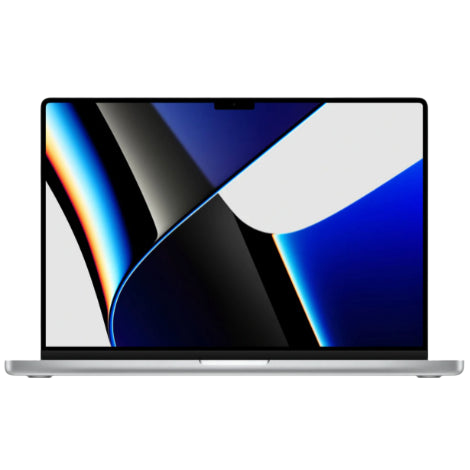
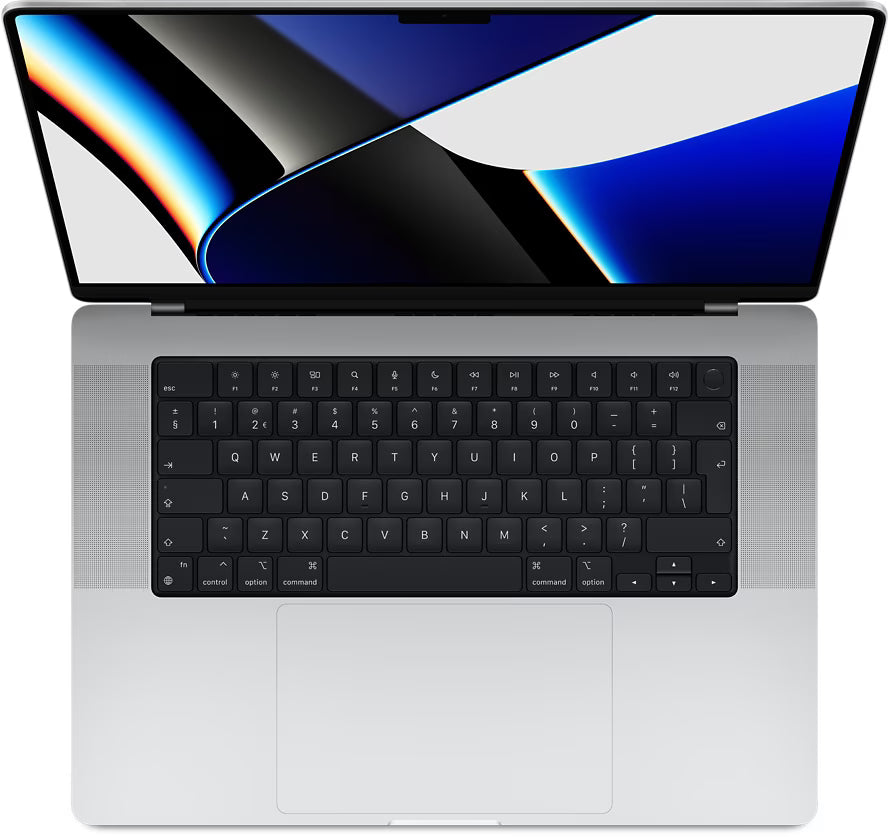
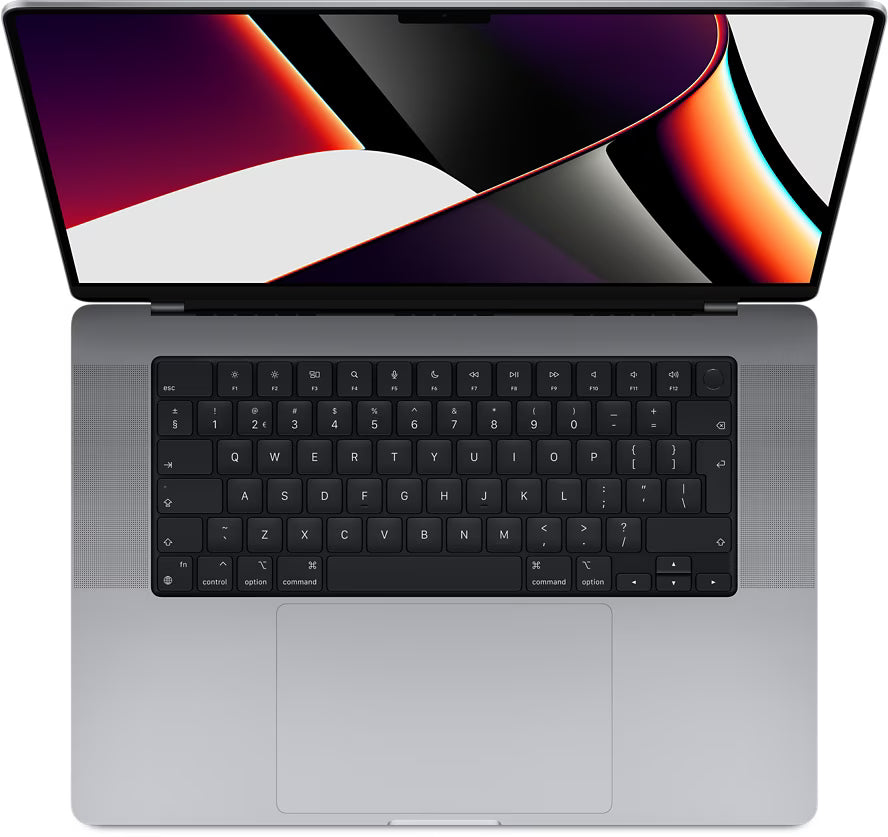
The hunt for the perfect MacBook wallpaper
Your MacBook wallpaper says everything about who you are. At least, that's what you think. Scrolling through wallpaper sites for hours. Hesitating between minimalist or colourful. Afraid your choice is too boring. Or too busy. Just like choosing the perfect accessories, you want it to feel right.
But here's the secret: most users never change their wallpaper after the first week. They stick with that one safe choice. Yet your wallpaper is the easiest thing to change. No hassle with cases or misplaced AirPods. Just a few clicks and your laptop feels new again.
The trick isn't finding that one perfect wallpaper, but daring to experiment. A different mood every day. Now that's truly personal.
Useful links
- MacBook accessories - for complete personalization of your laptop
- MacBook collection - discover refurbished models
- Protection for your Apple devices
The psychology behind your desktop choice
Your MacBook wallpaper tells more about you than you might think. Research shows that people spend an average of 2.5 seconds looking at their desktop before opening an application. These brief moments add up to hours per month. A dark, minimalist background can increase your concentration during work hours. Colourful, natural images have been shown to reduce stress between tasks.
Interestingly, most users choose their wallpaper from three categories: nature (43%), abstract art (31%), or personal photos (26%). Each category has its own effect on productivity and mood. Nature photos are calming, abstract designs stimulate creativity, and personal images keep you motivated.
Technical aspects that make a difference
The resolution of your wallpaper determines how sharp the image appears. For a 13-inch MacBook Air, you need at least 2560 x 1600 pixels. A 16-inch MacBook Pro requires 3456 x 2234 pixels. Too low a resolution results in a blurry image that unconsciously irritates you while working.
The file format also matters. JPEG files are compact but can show quality loss with high compression. PNG files retain details better, especially for graphic designs with sharp lines. HEIF format, Apple's own standard, offers the best balance between quality and file size.
Dynamic wallpapers vs. static images
Since Mojave, macOS offers dynamic wallpapers that change with the time of day. These desktop images adjust from light to dark as the day progresses. The advantage: your eyes are less strained in the evening hours. The disadvantage: they use more system resources, which can affect battery life on older models.
Practical installation methods
Everyone knows the standard method via System Settings. But there are quicker alternatives. Drag an image directly from Safari to your desktop while holding down the Control key. The context menu immediately gives you the option 'Use Image as Desktop Picture'.
For multiple screens, you can set different backgrounds. Right-click on each screen individually in System Settings. This works particularly well if you use an external display for specific tasks. For example, put a calming background on your main screen and a neutral one on your second screen for reference material.
Automatic switching for variety
macOS can automatically switch between wallpapers. Create a folder with your favourite images. Select this folder in the desktop settings and set an interval: every 5 seconds to once a day. The 'Random order' option prevents you from recognizing the pattern.
Sources for high-quality backgrounds
Free sources often provide surprisingly good quality. Unsplash offers over 3 million royalty-free photos in high resolution. The search function is intuitive with terms like 'minimalist', 'nature', or 'abstract'. Pexels has a similar collection with the advantage of pre-selected collections by theme.
For macOS-specific wallpapers, Apple's own Wallpaper Hub is a good starting point. Here you'll find all standard backgrounds from previous macOS versions. Nostalgia for that classic Yosemite photo? It's right there.
Paid options like Wallpaper Engine offer animated backgrounds. These move subtly without disturbing your work. Think of slowly moving clouds or rippling water. Be mindful of power consumption; moving images require continuous GPU power.
Organization and workflow tips
Create different wallpaper sets for different situations. A 'focus' set with calm, dark images for deep work. A 'creative' set with inspiring artworks for brainstorming sessions. A 'relaxation' set with nature photos for breaks. Switch between sets depending on your workday.
Use Shortcuts to quickly switch between pre-set wallpapers. Create a shortcut that changes your desktop picture based on your Focus mode. Work focus gets a neutral background, Personal focus a more cheerful one.
Seasonal adjustments
Change your wallpaper with the seasons. It keeps your desktop fresh and subtly marks the passage of time. Winter landscapes in December feel more natural than a summer beach. This small adjustment can positively influence your mood during darker months.
Performance considerations
A wallpaper seems innocent, but it can affect system performance, especially on older MacBooks or models with less RAM. Avoid backgrounds larger than 10 MB. They load slower and use unnecessary memory. Compress large files first with tools like ImageOptim.
When using multiple virtual desktops, each desktop can have its own background. Handy for organization, but it doubles or triples memory usage. On a MacBook with 8 GB of RAM, you'll notice this especially during intensive multitasking.
Live wallpapers or video backgrounds look spectacular but are battery hogs. A static background can extend your battery life by 30 minutes on an average workday. For on-the-go work, a simple background is therefore more practical.
Your digital workspace deserves attention
Your MacBook wallpaper is more than decoration. It influences your productivity, mood, and even battery life. Whether you choose minimalist designs or nature photos, make sure the resolution is correct and the file format suits your usage.
Experiment with different sets for work and relaxation, but remember that simplicity often works best. Just as you invest in the right MacBook or accessories, your digital workspace also deserves attention. Small adjustments make the difference between a laptop that functions and one that truly suits you.