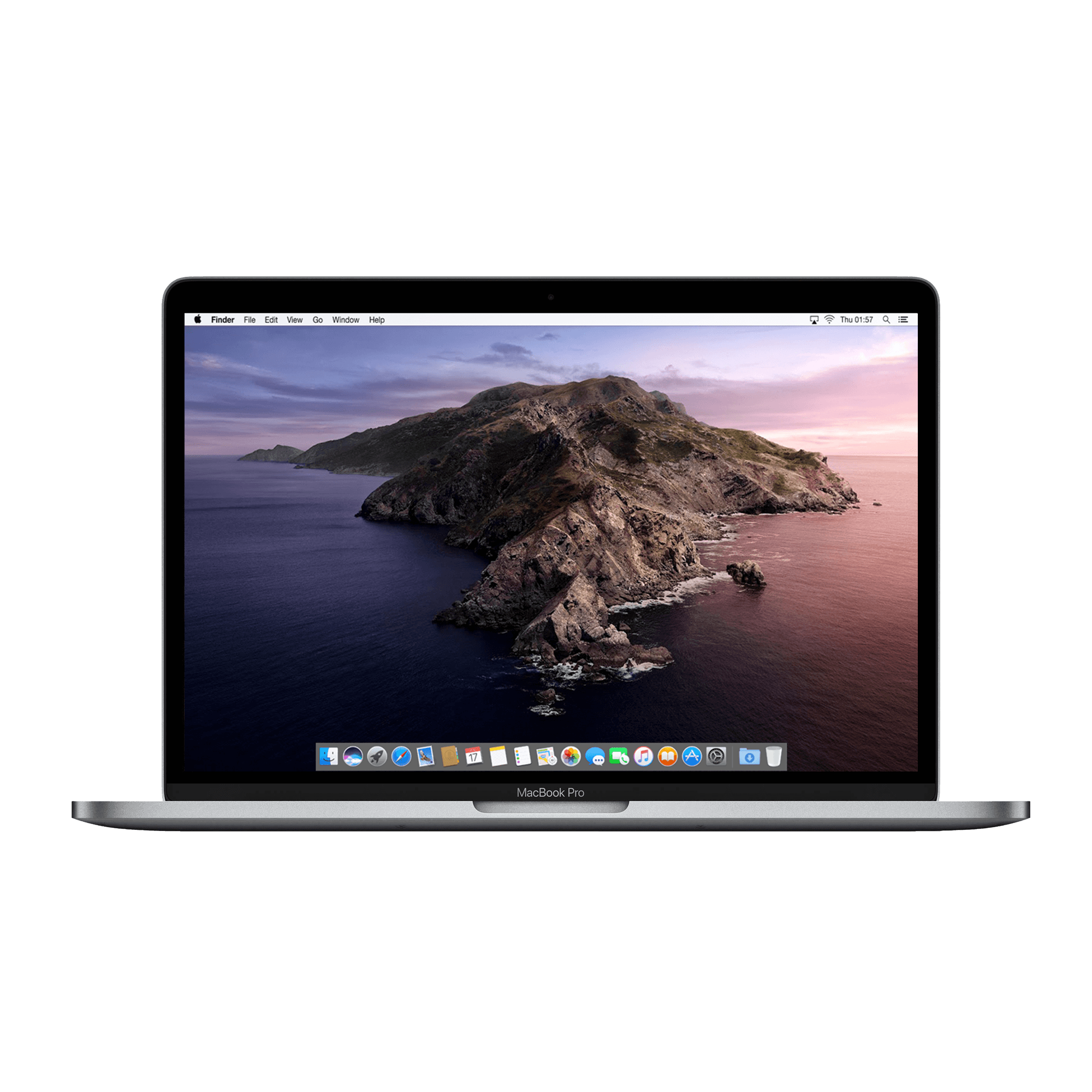
Securely Share Your MacBook with a Guest Account
Sharing your MacBook with friends or family feels like handing over the keys to your house. Your personal photos, documents, browsing history – everything is exposed. Yet, you don't want to be that person who won't lend out their laptop.
The solution seems simple: a guest account. But here's the twist: most MacBook users have no idea how powerful this feature actually is. It goes beyond just shielding your files. A properly configured guest account transforms your MacBook into a completely clean workspace – without leaving a single trace after logging out.
Perfect for when your kids want to watch YouTube, or if your colleague needs to print something quickly. And with the right accessories like a privacy screen, or AirPods for personal sound, sharing becomes even easier. Time to smartly secure that digital front door.
Useful links
- Refurbished MacBook Air collection - ideal for families needing multiple devices
- Apple Watch Series 8 - personal notifications without sharing a laptop
- iPad collection - perfect alternative for children without access to your MacBook
Why a guest account is essential for every MacBook user
A guest account on your MacBook is more than a nice extra feature. It's a fundamental security measure that many users overlook. When friends, family, or colleagues want to borrow your laptop, you no longer have to reluctantly share your password. A guest user gains access to a completely clean environment without your personal files, browsing history, or logged-in accounts.
The power of this feature lies in its automatic cleanup. As soon as a guest logs out, all downloaded files, browsing history, and temporary data are permanently deleted. This means that every new guest user starts with a clean slate. For parents with children, this is ideal: they can safely watch YouTube or visit educational websites without you having to worry about what they might encounter in your own browsing history.
Step-by-step instructions for activation
Setting up a guest account varies slightly by macOS version, but the basic process remains the same. First, open System Preferences via the Apple menu at the top left. Navigate to 'Users & Groups'. Here you'll see an overview of all existing accounts on your device.
Click the padlock icon at the bottom left to enable changes. Enter your administrator password. Now you'll see the 'Guest User' option appear in the list. Check the box to allow guests to log in. Directly below this option, you'll find additional settings such as access to shared folders – only enable this if you want to share specific folders.
Important security settings
After activating the guest account, you can fine-tune further. Go to parental controls settings to block specific websites or specify allowed sites. This is especially useful when children are using the guest account. You can set time limits, block certain applications, and even disable the camera.
Also consider enabling FileVault if it's not already active. This encryption ensures that even with physical access to your hard drive, no one can access your personal files. The combination of FileVault with guest accounts forms a strong line of defence against unwanted access.
Practical applications in daily life
The guest feature proves its worth in countless situations. Think of that time your colleague needed to quickly print a document during a meeting. Or when friends want to play music via Spotify Web during a party. Children can safely do their homework without you having to fear that they might accidentally delete important files.
For people who regularly work from home, the guest account offers a professional solution when clients or suppliers need to use a computer for a moment. You maintain a professional appearance without privacy risks. This model of sharing is becoming increasingly relevant as hybrid work becomes the norm.
Common pitfalls and solutions
A frequent problem is that users forget to disable the guest account after use. This leaves an unnecessary access point open. Make it a habit to check after each use whether the feature is still needed. Another point of attention: some applications do not work optimally in a guest session because they require specific user permissions.
If the guest account does not appear on the login screen, first check if you have installed the latest macOS updates. Sometimes a restart can also work wonders. For persistent problems, you can try resetting the NVRAM by holding down Command + Option + P + R during startup.
Alternatives and additional security measures
Besides guest accounts, you might consider creating separate user accounts for regular users. This alternative offers more control over individual settings and preserves personal preferences. For children, you can set up a special child account with permanent restrictions.
A privacy screen protector forms a physical barrier against prying eyes. These accessories drastically limit the viewing angle, so only the person directly in front of the screen can see the content. Combine this with the guest account for optimal privacy when sharing your workspace.
Future-proof tips for account management
Apple continuously improves the security features in macOS. Keep your system up to date to benefit from the latest security patches. Also consider using two-factor authentication for your Apple ID. This prevents unauthorised access even if someone knows your password.
Regularly back up via Time Machine before making major changes to user accounts. A good backup strategy means you can always revert to a working configuration. Periodically test whether the guest account is still functioning correctly, especially after major system updates.
The time invested in correctly setting up a guest account pays off in peace of mind. Your MacBook becomes a device you can share without hesitation, knowing that your digital life remains protected.
Privacy and convenience in balance
Setting up a guest account takes no more than five minutes, but saves you years of inconvenience. Your MacBook becomes a device you can share without worries – whether it's for kids who just want to watch YouTube or colleagues who need to print something quickly.
The combination with smart accessories makes sharing even easier. Don't forget: privacy is not a luxury but a necessity. With this simple adjustment, you protect what's yours while remaining hospitable to others.