Making professional videos with free software
Making professional videos sounds complicated. Expensive software, years of experience, complex editing programs. Most people give up before they even start. But what if Apple has quietly been giving away the perfect solution for years for free?
iMovie comes standard on every Apple device. No subscription fees, no hidden features behind a paywall. The remarkable thing is that almost no one realizes how powerful this free app actually is. With the right accessories like a tripod or external microphone, and some AirPods for listening to your audio during editing, you can create content that professional editors will envy within an hour.
Without courses. Without three-hour YouTube tutorials. Just by starting with what you already have.
Useful links
- iPad collection - ideal screen for video editing
- Accessories - tripods and microphones for better recordings
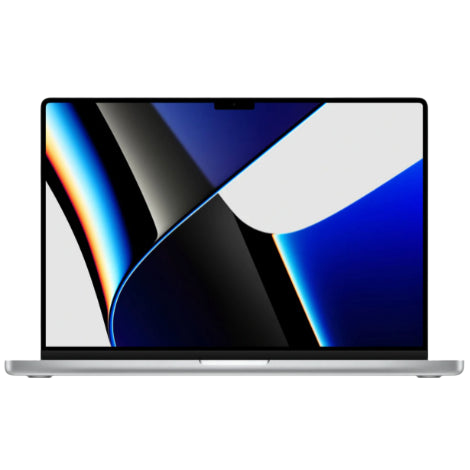
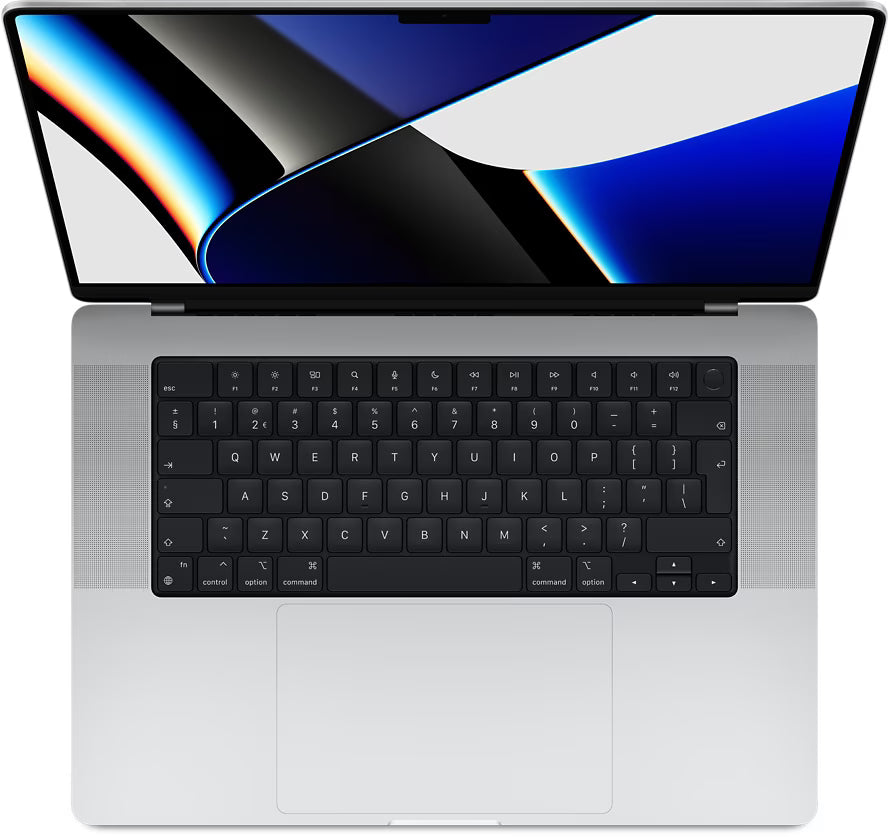
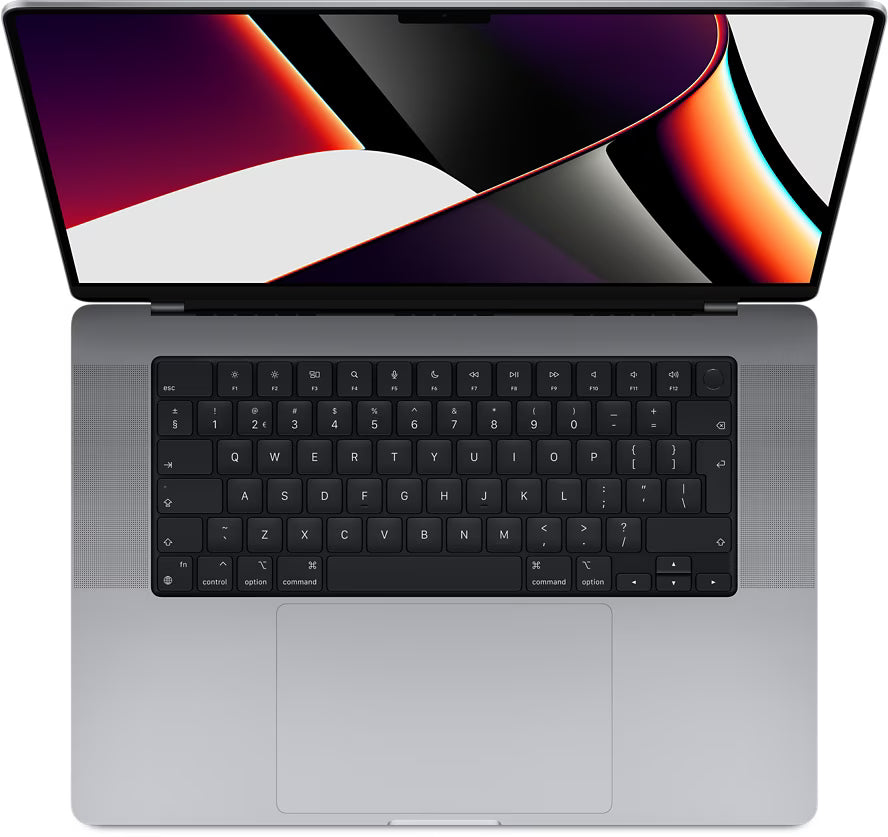
- MacBook collection - professional editing capabilities
What exactly is iMovie?
iMovie is Apple's free video editing software that comes standard on every Apple device. The program offers an accessible way to edit videos without prior knowledge. Where professional software like Final Cut Pro or Adobe Premiere Pro has a steep learning curve, you can get started with this app in minutes.
The special thing about the software is the balance between simplicity and possibilities. You'll find features that are normally only available in paid programs: colour correction, green screen effects, slow motion, and even 4K support. All this without monthly costs or hidden payments.
Two ways to get started
When starting a new project, you have two choices: create a trailer or a movie. Both options have their own advantages.
Trailers: quick and impressive
The trailer option offers ready-made templates with Hollywood-style effects. You simply fill the placeholders with your own footage and the app does the rest. Within five minutes, you have a professional-looking preview. Handy for presentations, teasers, or just to impress friends.
Each template has its own style: action, romance, horror, or adventure. The music, transitions, and text effects automatically match the chosen theme. You just have to drag and click.
Movies: full control
The movie option gives you complete freedom. Here you combine videos, photos, music, and effects as you see fit. This is where the real magic happens. You determine the order, timing, and style of each element yourself.
This mode is perfect for holiday montages, corporate videos, or creative projects. You have access to all editing tools without the limitations of a template.
Essential editing techniques
The power of iMovie lies in the details. These techniques make the difference between an amateur video and professional work:
Trim and split tools are your best friends. Remove dead moments, keep only the highlights. A good video has pace. Cut everything that doesn't contribute to your story.
Transitions connect scenes smoothly. Use them sparingly - too many effects are distracting. A simple cross-dissolve often works better than a spectacular spin.
Speed adjustments create drama. Slow down important moments for impact. Speed up boring parts or create a timelapse of long events. The software automatically calculates the intermediate frames for smooth results.
Colour correction makes the difference between amateur and professional. Adjust brightness, contrast, and saturation. Match the colors between different shots for a consistent look. The automatic color balance works surprisingly well.
Audio: the forgotten half
Sound determines fifty percent of your video's quality. iMovie offers surprisingly many audio possibilities:
- Noise reduction for recordings with background noise
- Equalizer for adjusting pitches
- Ducking to automatically lower music during speech
- Royalty-free music library with hundreds of tracks
- Sound effects for extra dimension
Record voice-overs directly in the app. The quality of a modern iPad or MacBook's built-in microphone is fine for commentary. For professional results, connect an external microphone.
Practical workflow tips
Always start with a rough overview. Drag all clips into the timeline, view the whole thing, then make detailed adjustments. This prevents you from spending hours perfecting scenes that you later discard anyway.
Organize your media beforehand. Create folders for different types of content: main footage, b-roll, music, effects. This saves searching time during editing.
Save different versions regularly. The app automatically creates backups, but manual saves provide extra certainty. Feel free to experiment - you can always go back to an earlier version.
Test your export settings. For social media, 1080p is usually sufficient. For archiving or professional use, choose 4K. Pay attention to file sizes - an hour of 4K video requires tens of gigabytes.
Platform-specific capabilities
On an iPhone, you work fastest with short clips. The touch interface is perfect for quick edits on the go. Ideal for social media content or vlogs.
An iPad offers the best of both worlds. The touchscreen makes selections intuitive, the larger screen provides an overview. With an Apple Pencil, precision work becomes child's play. Most semi-professional creators swear by this combination.
On a MacBook or iMac, you have maximum control. Keyboard shortcuts greatly speed up your workflow. Multiple screens are possible for preview and timeline side by side. External storage for large projects is no problem.
Common beginner mistakes
Overly long intros are deadly for viewership. Get straight to the point. You have three seconds to grab attention.
Excessive use of effects and transitions distracts from the content. Less is more. A good story doesn't need fireworks.
Forgetting to check audio levels results in unprofessional videos. Music should never drown out speech. Always test on different devices.
Exporting in the wrong resolution wastes time or quality. Instagram Stories require different settings than YouTube. Know your target platform.
When iMovie isn't enough
For most users, this software is more than sufficient. However, there are limits. Multicam editing with more than two sources becomes difficult. Advanced colour grading has limited possibilities. Motion graphics and 3D effects are missing.
Professional editors then switch to Final Cut Pro. But remember: most viral videos and successful vlogs are made with simpler tools. Technology is rarely the limiting factor - creativity and story make the difference.
The software grows with your skills. Beginners use templates and automatic functions. Advanced users discover more and more possibilities. After a year of use, you probably still don't know all the features.
The beauty is that you can seamlessly transfer your projects to Final Cut Pro if you need more. Your investment of time and effort is not lost. This makes the app the perfect stepping stone to professional video editing.
The power of simplicity
iMovie proves that professional video editing doesn't have to be complicated. The software is already on your Apple device, costs nothing extra, and offers all the tools you need. Whether you work on an iPad for quick edits or a MacBook for more extensive projects - the barrier to entry has been removed.
Stop procrastinating, open the app, and discover what you've had at your disposal for years for free. The best video is not the one made with the most expensive software, but the one you actually make.