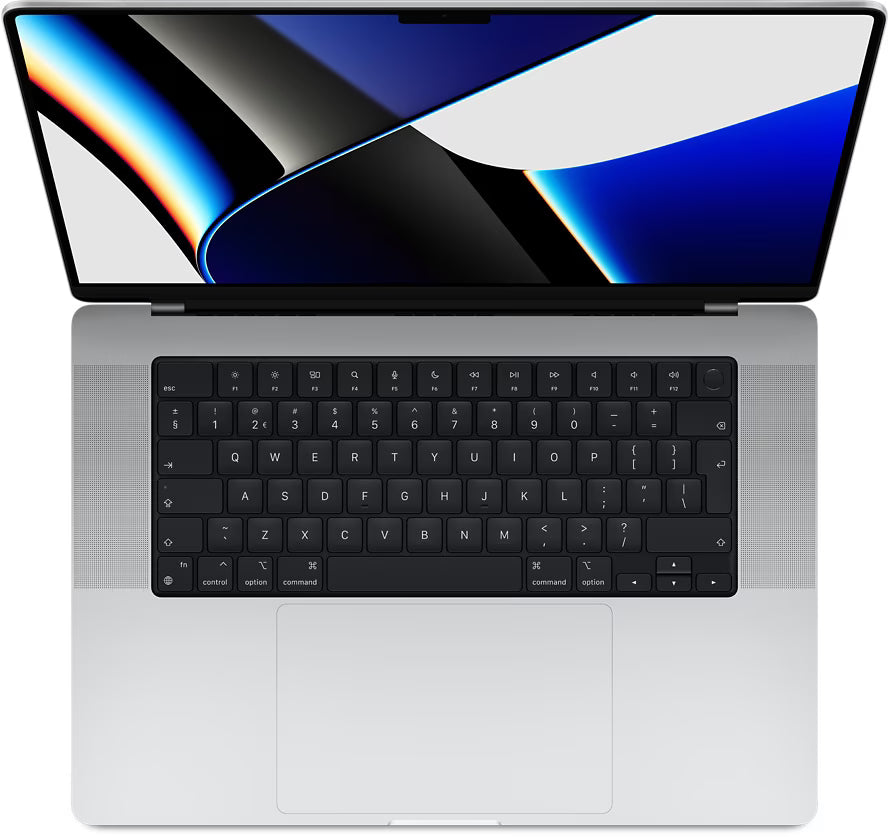
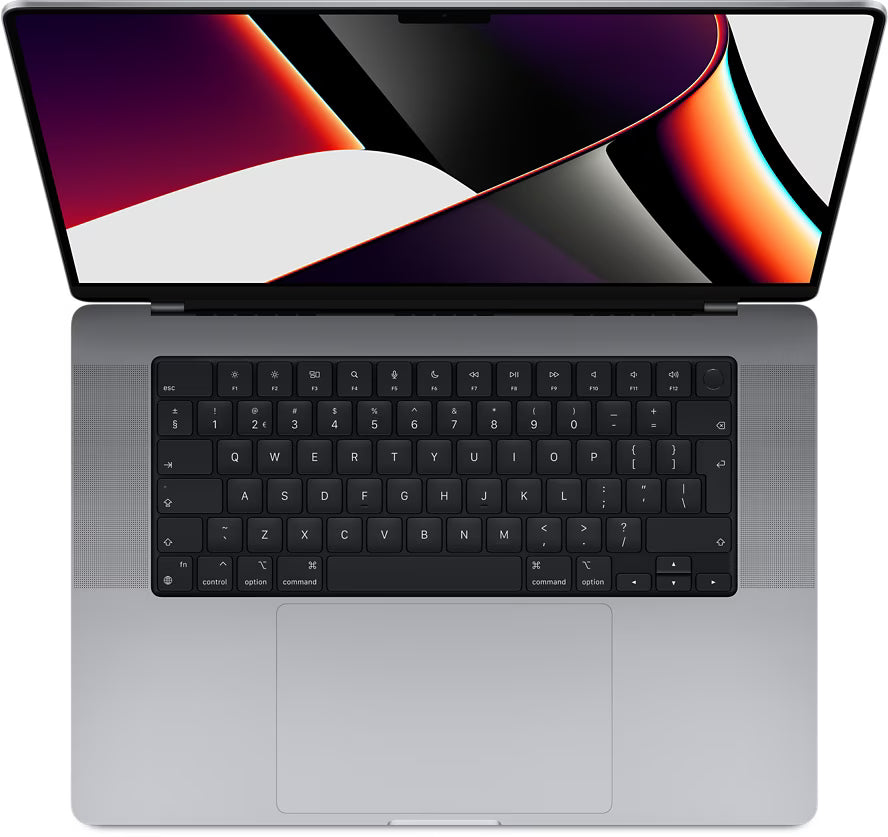
Hidden Copy and Paste Features on Your MacBook
Copying and pasting on your MacBook. You do it hundreds of times a day. Command+C, Command+V. Done. At least, that's what you think. Because while you're still using the same two shortcuts you learned years ago, most MacBook users are missing tricks that could double their workflow speed.
But here's the thing: these hidden features have been on your MacBook for years. You just aren't using them. Think about copying multiple items at once without constantly switching back and forth. Or pasting text without formatting with one extra key. Even the Touch Bar has copy functions that no one knows about.
These aren't complicated workarounds. They are built-in features that Apple intentionally added but never really promoted. It's time to discover what your MacBook can really do.
Useful links
- MacBook collection - find the perfect model for your work style
- Accessories - improve your workflow with the right tools
- Apple Intelligence - discover smart features for more productive work
Beyond the Basics: What You Really Need to Know
We all know Command+C and Command+V. But your MacBook hides dozens of copy functions that can dramatically increase your work speed. The difference between an average user and a power user? The latter knows these tricks.
Take pasting without formatting, for example. You copy text from a website, paste it into your document, and suddenly everything is in Comic Sans with a blue background. Frustrating. The solution lies in one extra key: Command+Shift+V. This combination pastes only the text, without carrying over the formatting. Instead of first pasting, then selecting everything, and then removing the formatting, you now do it in one swift motion.
Copying Multiple Items Without Switching Back and Forth
Your MacBook's clipboard seems limited to one item at a time. If you copy something new, the previous one disappears. At least, that's what everyone thinks. But with Universal Clipboard, you can copy on your iPhone and paste directly on your Mac. Or vice versa. Make sure both devices are logged in with the same Apple ID, have Bluetooth enabled, and are within range. It works automatically.
For those who truly want to manage multiple items: try the app Paste or CopyClip. These tools create a history of everything you copy. With a shortcut, you can bring up an overview of your last twenty copied items. Select what you need and paste it directly. No more hassle with switching tabs to find that one sentence again.
The Magical Option Key Trick
The Option key (⌥) transforms standard copy functions. Do you drag a file to another folder? Normally, this moves the file. Hold down Option while dragging, and you create a copy. This works in Finder, but also in many other apps. In word processors, you can duplicate entire text blocks with Option+drag without first copying and pasting.
Shortcuts That Save Time
These combinations make the difference between slow and fast work:
- Command+Option+V: moves the copied item instead of duplicating it (works in Finder)
- Command+Shift+Option+V: pastes text and matches the formatting to the destination document
- Command+K: instantly turns copied text into a hyperlink (in many apps)
- Shift+Command+C: copies the full path of a selected file
Screenshots Directly to Clipboard
Why save a screenshot first and then copy it? With Command+Control+Shift+4, you take a selection screenshot that goes directly to your clipboard. No clutter on your desktop, paste directly where needed. For a full screen, use Command+Control+Shift+3.
Manipulating Text While Copying
In Terminal and some text editors, you can apply transformations directly while selecting. Select text with the mouse while holding down Option to make rectangular selections. Perfect for copying columns from tables without taking the entire row.
Preview offers a similar function for PDF files. Open a PDF, select text vertically by pressing Option while selecting. This way, you copy only the information from specific columns without having to clean it up manually.
Optimizing the Touch Bar
MacBooks with a Touch Bar show context-sensitive copy buttons. In many apps, 'Cut', 'Copy', and 'Paste' appear automatically when you select text. But the real power lies in customization. Go to System Preferences > Keyboard > Customize Touch Bar. Drag your favorite actions to the Touch Bar. For example, add 'Paste and Match Style' for quick access.
Copying Between Devices
Handoff takes copying to a higher level. Start a document on your iPhone, continue working on your Mac. Copying passwords between devices? Universal Clipboard handles it. Even large files up to 100MB can be copied and pasted between Apple devices as if they were on the same device.
Troubleshooting
Is copy and paste no longer working? First, the classic solution: restart the app. If that doesn't help? Open Activity Monitor, search for 'pboard' (the clipboard process), and stop it. macOS will automatically restart it. This solves 90% of clipboard problems without a complete restart.
For persistent problems in specific apps: check the security settings. Some apps require clipboard access via System Preferences > Security & Privacy. Especially apps you downloaded outside the App Store can encounter this.
These tricks will transform your daily workflow. The difference between someone who only knows Command+C and someone who masters these techniques? Hours of saved time per week. Start with one or two new shortcuts, make them your own, and gradually expand. Your MacBook can do much more than you think - use it.
Conclusion: More Than Just Command+C and Command+V
Copying and pasting on your MacBook goes far beyond Command+C and Command+V. From pasting without formatting to managing multiple items at once – these functions are already built into your system. It might take some time to learn new shortcuts, but the time savings are enormous.
Start today with Command+Shift+V for pasting without formatting and gradually discover more tricks. Because why make it difficult for yourself when your MacBook can simplify the work for you?